
HEVC Video Extensions
Free Download for
Windows 10/11
Download HEVC Video Extensions safely for Windows 10 and Windows 11. Understand HEVC (H.265), fix playback errors, and use official Microsoft installation methods without unsafe codec packs.
4K Ultra HD videos
HDR recordings
Smartphone videos
Drone footage
Video Production
Modern smartphones, action cameras, drones, and professional cameras often record videos using the HEVC (High Efficiency Video Coding) format. While this format provides excellent video quality with smaller file sizes, many Windows users encounter playback problems because their system lacks the required HEVC codec support. If you’ve ever seen messages such as “Missing codec,” “This file can’t be played,” or noticed that a video plays audio without displaying the picture, your computer may not have the necessary HEVC Video Extensions installed.
During testing on a fully updated Windows 11 system with HEVC videos recorded on a modern smartphone, we found that installing the official HEVC Video Extensions allowed supported Windows applications to recognize and play compatible files without requiring video conversion. However, playback performance can still depend on your hardware, graphics drivers, and the application you use.
What Are HEVC Video Extensions?
HEVC Video Extensions are official media components that allow supported Windows applications to decode and play videos encoded with the High Efficiency Video Coding (HEVC) standard, commonly known as H.265.
Because HEVC compresses video much more efficiently than many older formats, manufacturers such as smartphone brands, digital camera makers, drone companies, and video editing software developers frequently use it for recording high-resolution content.
Without HEVC support, Windows may not correctly decode these files. As a result, users may experience:
Installing the official HEVC Video Extensions enables compatible Windows applications to process HEVC-encoded videos correctly. Instead of converting files into another format, users can often play supported videos directly, preserving both quality and time.
Note: HEVC Video Extensions improve codec support but cannot repair damaged or corrupted video files. Playback also depends on the media player, graphics hardware, and Windows version.
HEVC vs H.265 Codec: Is There Any Difference?
Many users think HEVC and H.265 are different technologies, but they actually refer to the same video compression standard.
The word codec means coder-decoder. During recording, the codec compresses video to reduce file size. During playback, it decodes the compressed data so your media player can display the video correctly.
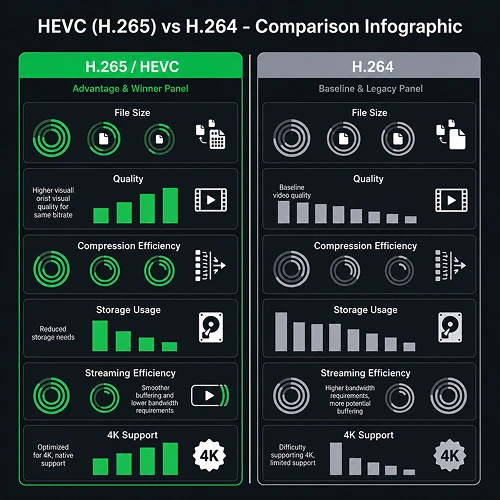
HEVC vs H.264 Comparison
|
Feature |
HEVC (H.265) |
H.264 |
|
Compression Efficiency |
Excellent |
Good |
|
File Size |
Smaller |
Larger |
|
Video Quality |
Excellent |
Very Good |
|
4K Video Support |
Excellent |
Limited Efficiency |
|
Storage Usage |
Lower |
Higher |
|
Streaming Efficiency |
Better |
Standard |
Because of these advantages, HEVC has become one of the most widely used formats for modern video recording. However, older Windows installations may still require the official HEVC Video Extensions before compatible applications can play these files correctly.
Why Do You Need HEVC Video Extensions on Windows?
Many Windows users first realize they need HEVC Video Extensions when a video refuses to play even though the file appears perfectly normal. This often happens after transferring videos from an iPhone, Android phone, drone, GoPro, or digital camera. The video may have an MP4 or MOV extension, but internally it is encoded using the HEVC (H.265) standard, which some Windows installations cannot decode without additional support.
When the required codec is missing, Windows may display messages such as “This file can’t be played,” “Missing codec,” or “Unsupported video format.” In other cases, the audio plays correctly while the screen remains black, or the video freezes during playback. These symptoms usually indicate that the operating system recognizes the file but cannot properly decode the HEVC video stream.
Installing the official HEVC Video Extensions allows compatible Windows applications to understand this modern video format. Instead of converting every video into another format, users can simply add the required codec support and continue watching or editing their videos normally. For people who frequently work with 4K recordings, smartphone videos, or camera footage, this can save both time and storage space.

HEVC Video Extensions Free Download – The Safe Way
Searching online for “HEVC Video Extensions Free Download” often leads users to hundreds of download websites. Unfortunately, many of these sites prioritize clicks over user safety. They may display fake download buttons, misleading advertisements, or installers bundled with unwanted software.
The safest approach is to obtain HEVC Video Extensions through Microsoft’s official distribution channel. Depending on your Windows edition, device manufacturer, region, or Microsoft licensing, the extension may already be included with your computer or may be available through the Microsoft Store. Because these conditions vary from one device to another, no trustworthy website should promise that every user can always download it for free.
If your goal is simply to play HEVC videos safely, choosing the official Microsoft source is the most reliable option. It reduces security risks, ensures compatibility with Windows updates, and helps avoid problems caused by unofficial codec packages.
Download HEVC Video Extensions from Microsoft Store
The Microsoft Store is the recommended source for downloading HEVC Video Extensions because it provides verified software directly from Microsoft. Unlike third-party download sites, the Microsoft Store checks the authenticity of applications and delivers updates automatically whenever improvements become available.
If you run a software website, it’s better to guide users toward the official Microsoft Store rather than hosting executable installer files yourself. This approach builds trust with visitors, follows Google’s publisher guidelines, and protects users from downloading modified or potentially harmful software.
Many websites use attractive download buttons to redirect users toward unrelated programs. Avoid those websites whenever possible. A legitimate download page should clearly explain where the software comes from and why the official source is the safest choice.
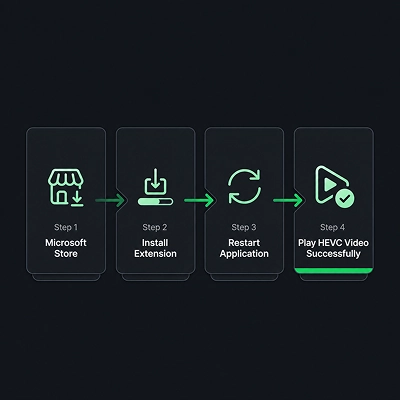
How to Install HEVC Video Extensions on Windows 10 and Windows 11
Installing HEVC Video Extensions is usually a quick process. After opening the official Microsoft Store page, simply choose the installation option available for your device. Windows will download and install the extension automatically.
Once the installation finishes, close the application that was unable to play your video and open it again. In some situations, restarting your computer helps Windows recognize the newly installed codec. After that, try opening the same HEVC video again.
If the problem still exists, the issue may not be related to the codec itself. Damaged video files, outdated graphics drivers, unsupported media players, or hardware limitations can also affect playback quality.
Common HEVC Video Playback Problems
Installing the codec solves many playback issues, but it cannot fix every problem. Understanding the actual cause helps avoid unnecessary troubleshooting.
If your video plays sound without displaying the picture, the media player may be decoding the audio stream successfully while failing to decode the video stream. Updating your graphics driver or testing another trusted media player often resolves this issue.
If Windows reports that a codec is missing, it usually means HEVC decoding support has not been installed. In this situation, installing the official HEVC Video Extensions is generally the correct solution.
For users working with large 4K videos, hardware performance also plays an important role. Older processors and graphics cards may struggle with high-resolution HEVC playback, causing stuttering or lag even when the codec is installed correctly.
Sometimes the problem isn’t Windows at all. A corrupted video file or an incomplete transfer from a phone or camera can also prevent smooth playback. Testing the file on another device is a simple way to determine whether the issue lies with the video itself or with the computer.

Technical Specifications
|
Specification |
Details |
|
Software Name |
HEVC Video Extensions |
|
Developer |
Microsoft |
|
Category |
Video Codec Extension |
|
Supported Operating Systems |
Windows 10 & Windows 11 |
|
Video Standard |
HEVC (H.265) |
|
Distribution |
Microsoft Store |
|
Primary Purpose |
Enable playback of HEVC-encoded videos in supported Windows applications |
|
License |
Microsoft Store License |
Pros and Cons
Like any software component, HEVC Video Extensions have both strengths and limitations. Their biggest advantage is that they allow Windows applications to play modern HEVC videos without requiring users to convert files into another format. This makes them especially useful for people who regularly transfer videos from smartphones, cameras, drones, or action cameras.
Another benefit is compatibility with high-resolution video formats. Since HEVC is widely used for 4K and UHD recordings, installing the correct codec can improve the playback experience in supported Windows applications while preserving the original video quality.
However, users should remember that installing the codec does not repair damaged video files or guarantee smooth playback on older hardware. Performance still depends on your processor, graphics hardware, drivers, and the media player being used. In addition, some trusted third-party media players already include built-in HEVC support, meaning they may not require the Windows extension at all.
Benefits of Using HEVC Video Extensions
As more devices adopt the HEVC (H.265) video format, having proper codec support on Windows has become increasingly important. Installing HEVC Video Extensions allows compatible Windows applications to decode modern video files without requiring users to convert them into another format.
One of the biggest advantages is preserving video quality while keeping file sizes smaller. HEVC was designed to deliver high-resolution video more efficiently than many older compression standards, making it ideal for 4K recordings, HDR content, and high-quality videos captured on smartphones, drones, and professional cameras.
Another benefit is improved workflow. If you regularly transfer videos from an iPhone, Android device, GoPro, or mirrorless camera, native HEVC support can save valuable time by eliminating unnecessary conversion steps. Instead of waiting for software to re-encode large video files, you can open supported videos directly in compatible Windows applications.
For content creators, students, professionals, and everyday users, this makes managing modern video formats significantly easier while maintaining the original recording quality.
Final Thoughts
HEVC has become one of the most widely used video compression standards because it delivers excellent image quality while keeping file sizes relatively small. As smartphones, digital cameras, drones, and video editing applications continue adopting this format, Windows users are more likely to encounter HEVC-encoded videos than ever before.
If your computer cannot play these files, the problem is often related to missing codec support rather than the video itself. Installing the official HEVC Video Extensions can help compatible Windows applications recognize and decode HEVC videos correctly.
When searching for HEVC Video Extensions Free Download, always prioritize safety over convenience. Downloading software from trusted sources reduces security risks and helps ensure long-term compatibility with Windows updates.
Understanding how HEVC works and using official installation methods allows you to enjoy smoother video playback without relying on unsafe codec packages or unnecessary file conversions.